Rooms
 The Rooms icon, on the right side panel offers added room shapes and single walls that you can add to your project.
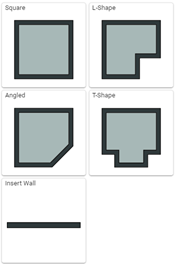
Select the form you want and move your cursor onto the project screen. The outline of the room you are inserting attaches to your cursor and is ready to insert anywhere you left-click.
The outline will appear red if you try to overlap the existing space and will not insert. Red indicates it can't be inserted.
It will appear as a green outline if you insert it adjacent to an existing room where it will fit.
Once the room is in the desired location, left-click to insert it.
Single Wall Insertion
To insert a single wall, select the single wall icon  .
.
Left-click to start the wall and left-click again where you want it to stop, and a wall will form.
Select the single wall icon again if you need additional walls.
Every wall inserted using the Rooms tools can be moved and deleted as required.